digital-signature
Migrating from Server / Data Center
What changed, what was removed, and how to migrate your signature data — for signers, space admins, and site admins.
This page is for teams moving from the legacy Confluence Server/DC plugin to the Confluence Cloud app.
It is split by who you are:
- If you sign contracts — any user who signs a declaration.
- If you set up contracts — space admins who create/configure signature macros and heal their space after a migration.
- If you run the migration — site admins who run the Cloud Migration Assistant (CMA).
What stays the same
The core signing experience is unchanged:
- Users sign with one click; signatures are permanent and cannot be revoked
- Named signers and signer groups
- Maximum signatures limit
- Visibility limit with "Show more" button
- Signature visibility controls (always, if signatory, if signed)
- Markdown contract content
- Content integrity — each contract version is identified by a SHA-256 hash of its title and body. Changing the content starts a new signing round.
- English, German, French, and Japanese UI
What has been removed
| Feature | Reason |
|---|---|
| Protected content (hidden child page revealed on signing) | The Forge platform cannot grant page-level permissions programmatically |
Panel toggle (panel=true/false) |
The Cloud macro always renders with a panel; the toggle has no equivalent |
| Email notifications on sign (automatic emails to configured users) | Forge apps cannot send email via SMTP |
| In-app notifications (WorkBox) | Already removed in Confluence 9.x; no equivalent in Cloud |
| HTML export endpoint | Not yet available; planned for a future release |
The email list export REST endpoint (/rest/signature/1.0/emails) is replaced by the built-in Email signers / Email pending buttons in the macro.
If you sign contracts (any user)
Signing on Cloud is exactly as before: open the page, read the contract, click Sign. Your signature is permanent.
"Legacy signature content detected"
Right after a space is migrated, a contract may show a blue notice instead of its text:
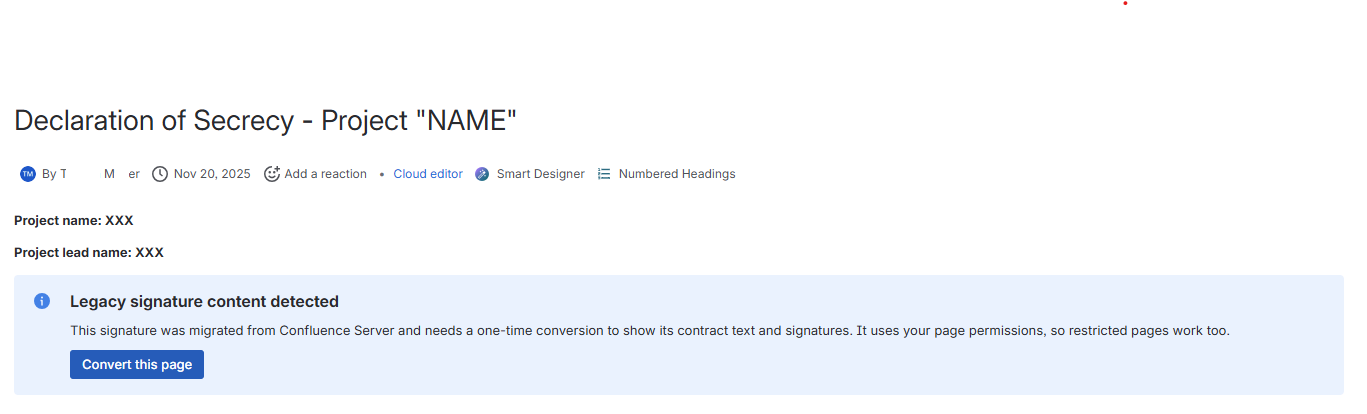
This means the macro was migrated from Confluence Server and needs a one-time conversion before it can show its contract text and signatures. Click Convert this page.
- It uses your own page permissions, so it works even on view/edit-restricted pages that an admin's tools can't reach.
- It only rewrites the macro on that one page — it never changes signature data, and the page history keeps the previous version.
- After it finishes, the page reloads and the contract renders normally.
If you don't see a Convert this page button (only a plain warning), you lack edit permission on that page — ask the page owner or a space admin to convert it (see the next section).
If you set up contracts (space admins)
As a space admin you (1) re-create/adjust the macro configuration and (2) heal your space's migrated macros in bulk.
Re-create your macro configuration
Re-create your macros using the new parameter names and formats:
| Server parameter | Cloud equivalent | Notes |
|---|---|---|
title |
panelTitle |
Renamed |
signers |
signers |
Server used usernames; Cloud uses Atlassian account IDs |
signerGroups |
signerGroups |
Server used group names; Cloud uses group IDs (UUIDs) |
inheritSigners (enum) |
inheritViewers + inheritEditors (two booleans) |
"readers only" -> inheritViewers=true. "writers only" -> inheritEditors=true. "readers and writers" -> both true. |
maxSignatures: -1 |
leave maxSignatures empty |
-1 is not valid in Cloud; empty means unlimited |
visibilityLimit: -1 |
leave visibilityLimit empty |
Same as above |
signaturesVisible: always |
signaturesVisible: ALWAYS |
Casing changed (uppercase in Cloud) |
pendingVisible: always |
pendingVisible: ALWAYS |
Same |
notified |
- | Dropped; no email notifications |
panel |
- | Dropped; always on |
protectedContent |
- | Dropped; feature not available |
Finding group IDs
Atlassian group IDs are UUIDs, not the display names you may have used on Server. Find them in Atlassian Admin -> Directory -> Groups — click a group to see its ID in the URL or details panel.
Finding account IDs
User account IDs can be found via the Atlassian Admin user list or via the Confluence REST API.
Petition mode
On Server, petition mode (any user can sign) was activated by setting signerGroups="*".
On Cloud, petition mode is automatic: if you configure no named signers, no groups, and no permission inheritance, any logged-in user who can view the page can sign. The configuration panel shows a notice when petition mode is active.
| Config | Server behavior | Cloud behavior |
|---|---|---|
| No signers, no groups, no inheritance | Locked (nobody can sign) | Petition mode (anyone can sign) |
signerGroups = "*" |
Petition mode | Petition mode |
The macro conversion tool detects locked Server macros and sets maxSignatures=0 to preserve the locked behavior in Cloud. You can manually edit the macro config to re-enable signing if needed.
Heal your space after a migration
Once a site admin has run the CMA migration (see the last section), the migrated macros in your space still carry Server-format markup and need converting to Forge ADF. You can do this for your whole space from Space settings → Integrations → Digital Signature → Migration:
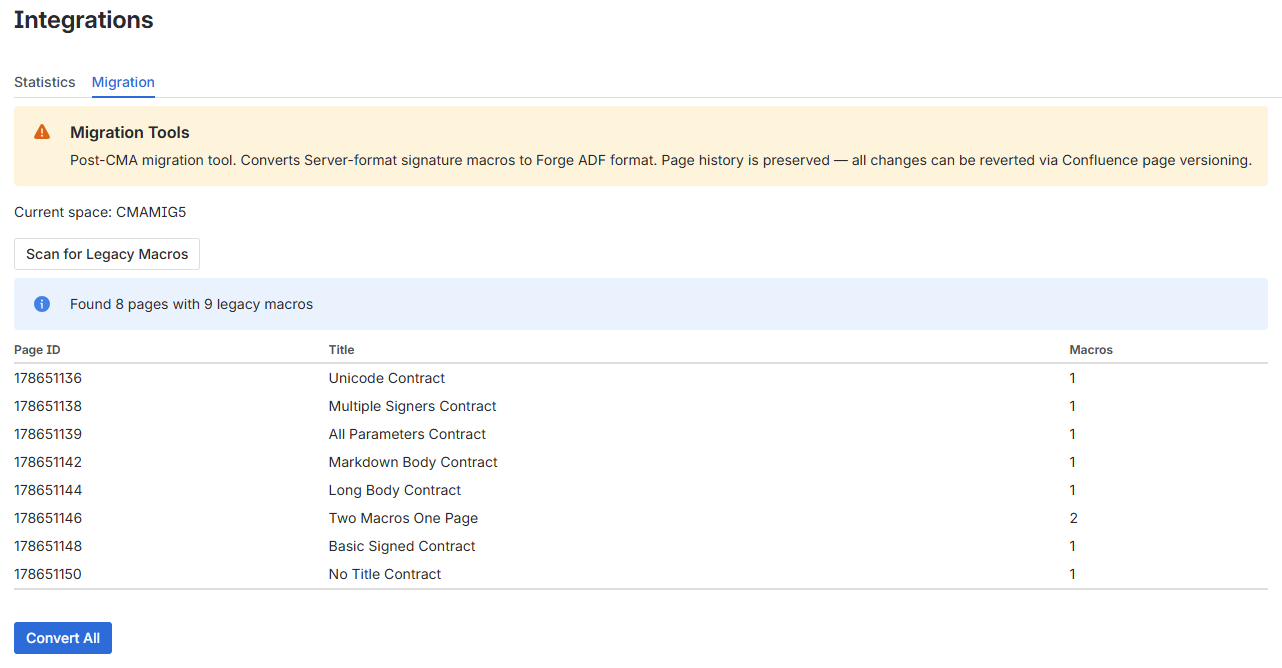
- Click Scan for Legacy Macros — read-only; lists every page in this space with unconverted macros.
- Review the table, then click Convert All. Pages are converted one at a time; a partial failure never affects already-converted pages, and every page keeps its history.
(Individual signers can also self-heal a single page with the Convert this page button — see the first section. Both routes are idempotent, so it's safe if they overlap.)
Check your space's data
The Statistics tab shows the contract and signature counts for the current space:
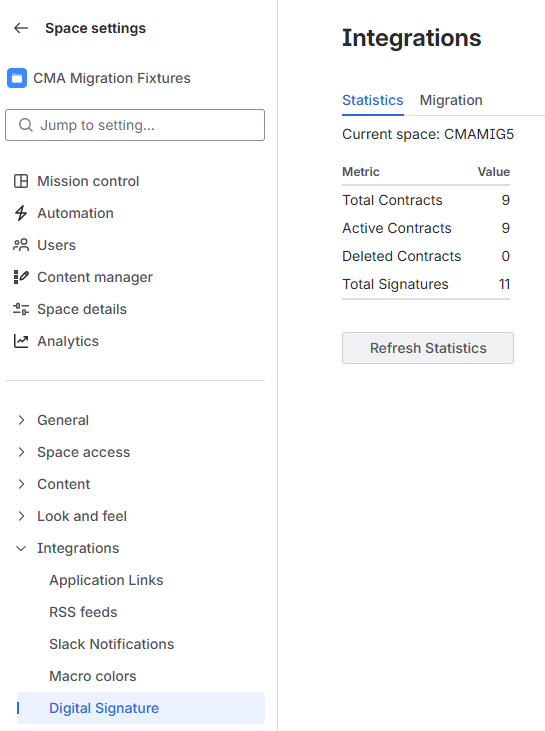
Compare these to your Server figures to confirm everything came across.
Signers who have left the company
Signatures made by users who no longer have an account are preserved — they show as a "former user" chip in the signed list rather than being dropped, so the audit trail stays complete. They are not counted as "pending". (With DC plugin 9.4.9 and a re-run migration, many of these resolve back to the person's real, deactivated Cloud account.)
If you run the migration (site admins)
Signature history from Server is migrated with the Atlassian Cloud Migration Assistant (CMA), in three phases:
- CMA migration — migrates spaces, users, pages, and exports signature data from Bandana to Forge SQL.
- Macro format conversion — converts the migrated macro storage format from Server XML to Forge ADF.
- Verification — confirm signatures display correctly on Cloud.
Prerequisites
Server/DC side:
- Confluence 9.x (Server or Data Center) — verified for this migration flow. Earlier versions (7.x / 8.x) may work but are not tested. Confluence 10.x is not supported.
- Digital Signature plugin 9.4.9 (or newer) — this build contains the current CMA migration listener, chunked/scoped export, and the fix that preserves signatures of departed users. Versions before 9.4.x predate these fixes and will drop or mis-map signatures.
- Confluence system administrator access (to install the plugin and run CMA).
Cloud side:
- Confluence Cloud site with the Digital Signature for Confluence app installed via Atlassian Marketplace.
- Admin access to the Cloud site.
Install the Server/DC plugin
The plugin is not on the Atlassian Marketplace (Server/DC EOL prevents republishing). Install the jar directly from GitHub Pages.
| Confluence version | Download |
|---|---|
| Confluence 9.x (Server or DC) | digital-signature-9.4.9.jar |
Older release folders remain under https://baloise.github.io/digital-signature/<version>/ for reference, but anything before 9.4.x predates the current migration listener and should not be used for the migration flow below.
To install:
- In Confluence, go to Administration → Manage apps → Upload app (
/plugins/servlet/upm). - Upload the jar you downloaded.
- Data Center only: the UPM shows a "This app is not an approved Data Center app" warning because the jar is not listed on the Marketplace. Click Continue / Upload anyway to proceed.
- After upload the app may be installed but disabled on Data Center. Open Manage apps → User-installed apps, locate digital-signature, and click Enable (and Enable again on any disabled modules underneath).
- Verify: the plugin appears in the user-installed list at version
9.4.9with status Enabled. You're now ready for CMA dev mode.
Step 1: Enable CMA dev mode
CMA dev mode is required because the Server plugin version is not published on the Marketplace. Dev mode bypasses the version check and includes any app that implements the migration listener.
On the Server instance:
- Go to Administration -> Developer Features (
/admin/darkfeatures.action) - Add dark feature:
migration-assistant.app-migration.dev-mode - Click Submit
Remove dev mode after migration is complete.
Step 2: Run CMA migration
- Go to Administration -> Migration Assistant (
/admin/migration.action) - Click Create new migration
- Configure:
- Name: descriptive name
- Stage: Production
- Destination: your Cloud site
- Select what to migrate:
- Spaces: the spaces containing signature macros
- Users and groups: Select all (required for user mapping)
- Apps: Skip — dev mode auto-includes the digital-signature app
- Run pre-flight checks, review, and Run now
During migration, the Server plugin exports all signature data as compressed JSONL (in fixed-size chunks, scoped to the selected spaces). The Forge app receives each chunk, maps Server page IDs and user keys to their Cloud equivalents, and inserts the contracts and signatures into Forge SQL. Signers who can't be mapped to a Cloud account (e.g. former employees) are preserved as legacy "former user" entries rather than dropped.
Step 3: Convert macro format (instance-wide)
Migrated pages have Server-format XML that Forge can't render, so the macro format must be converted to Forge ADF. You can convert the whole instance from the global admin page — or delegate per-space conversion to space admins (see If you set up contracts), or let individual users self-heal a page at a time with the Convert this page button.
The Forge app includes a built-in migration tool on the admin settings page:
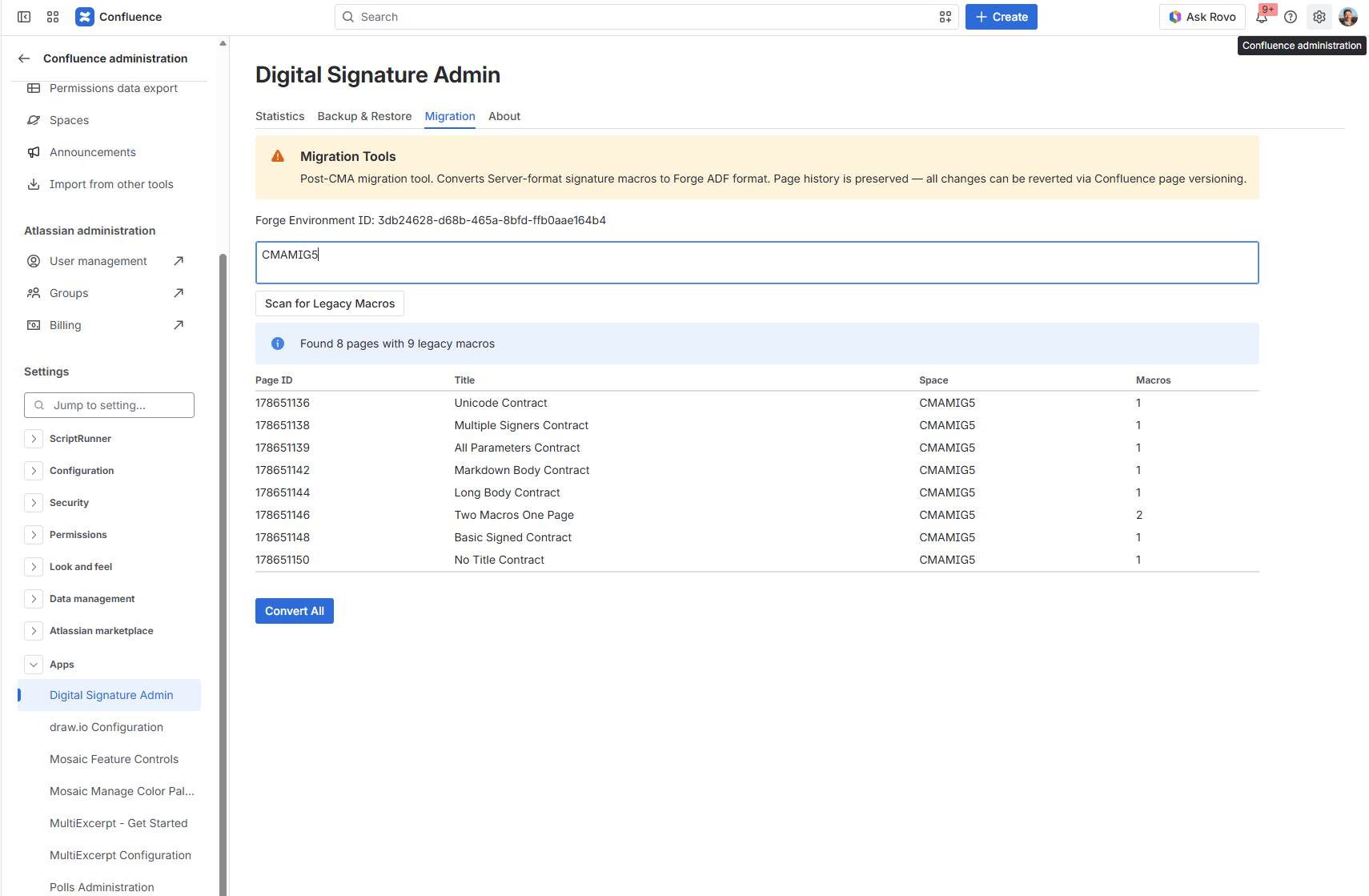
- Open Confluence administration → Apps → Digital Signature Admin.
- Go to the Migration tab.
- Optionally enter a space key to limit the scan to one space (leave empty for all spaces).
- Click Scan for Legacy Macros — read-only; shows a table of pages (with their space) that still have unconverted macros.
- Review the results, then click Convert All.
- A progress bar tracks the conversion. Each page is updated individually — partial failures don't affect already-converted pages.
- Reload any converted page to verify the macro renders correctly.
The conversion is safe and reversible: every page update creates a new version, so you can revert via Confluence page history if needed. No signature data is modified — only the macro XML in the page body changes.
Step 4: Verify
Check pages — Open migrated pages on Cloud. Signature macros should render with the contract title and body, signed signatures with date and Cloud user (or a "former user" chip for departed signers), and correct signing permissions (locked macros should not allow new signatures).
Check statistics — The Statistics tab (global admin, or per-space in Space settings) shows contract and signature counts. These should match your Server data.
Check for former-user signers — Signatures whose signer has no Cloud account are kept as "former user" entries, not dropped, so counts stay complete. Forge logs report the per-chunk count as
legacySigners=.
Troubleshooting
"Error loading the extension!" / "Legacy signature content detected" on migrated pages The macro format hasn't been converted yet. Convert it — instance-wide (Step 3), per-space (space admin section), or per-page (Convert this page button).
Signatures don't display (macro renders but empty) Contract hashes may not match. Check Forge logs for page ID mapping issues. Re-trigger the app migration from the CMA UI.
"0 apps will be migrated" Dev mode is not enabled. See Step 1.
To be notified of updates, watch the GitHub repository or open an issue there.